Reading and writing
Everything here happens at http://localhost:4100, after you sign in. It is meant to feel like an editorial tool, not a git client. The owner and anyone granted read+write write straight to git; a contributor's Update reads Propose and lands in review (see Permissions).
Reading
Pages open on warm paper, set in a serif for long reading. The sidebar on the left is your mounts and their folders, nested and collapsible, and it expands to show where you are. A breadcrumb across the top tells you the path, collapsing its middle on deep pages so it never runs off the screen. Wikilinks, written [[by title]], resolve to the page they name, and only to pages you are allowed to open.
Selecting a run of prose raises a small bar over it, and the text stays selected while the bar is up. Copy puts the selection on your clipboard twice over - as rich text for anywhere that takes it, and as real Markdown for anywhere that does not - so a paragraph pasted into another editor arrives with its headings, lists, tables, and code fences intact, and pasted into a plain text field arrives as the Markdown that made it. ⌘C works exactly as it always did; the button is just the one that also carries the Markdown. Comment is the other thing a selection can mean, and it is a deliberate press - see Comments.
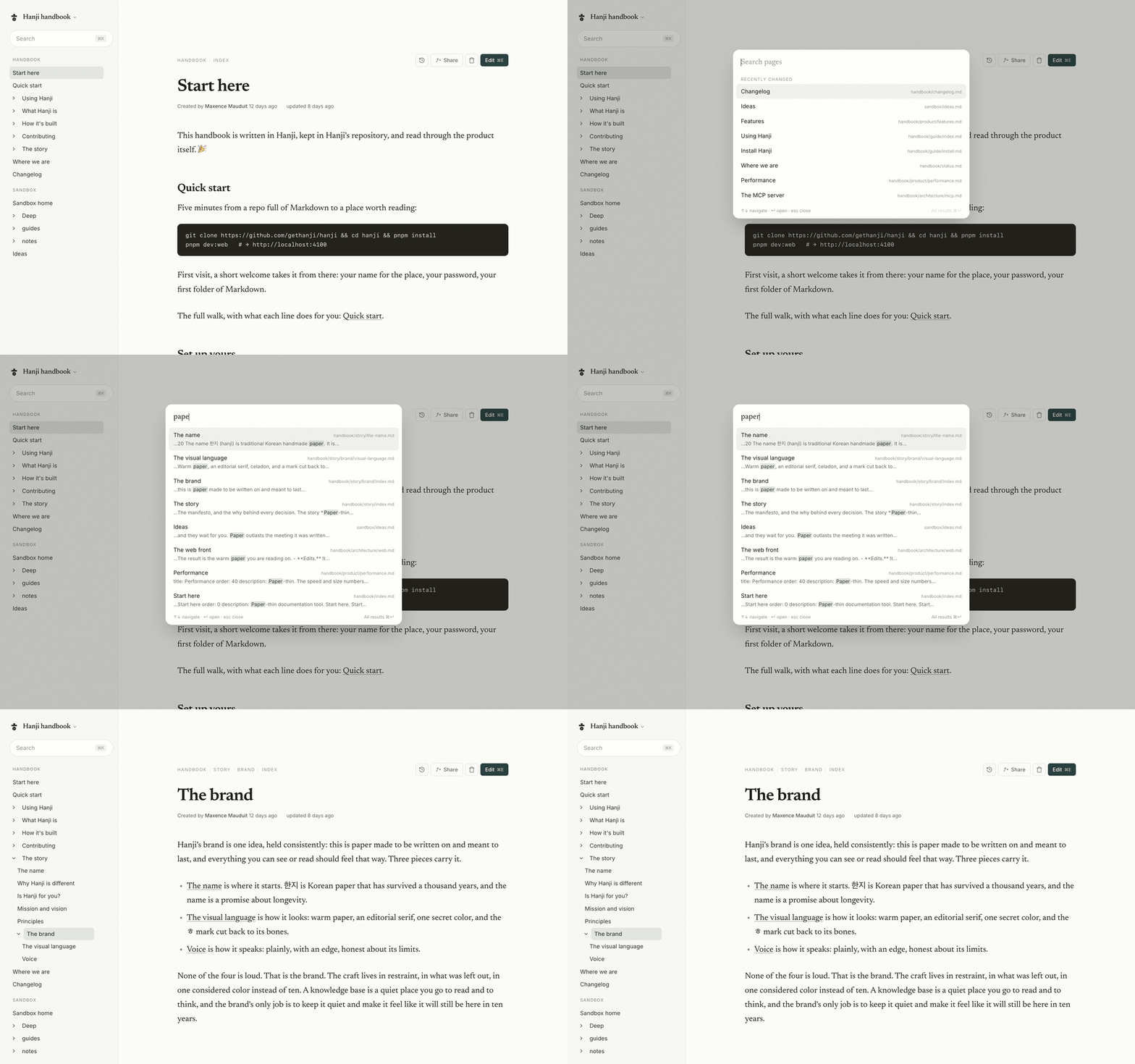
Search is a keystroke away. ⌘K opens the palette: ranked results with the matching passage highlighted, your recently changed pages when the box is still empty, and the keyboard all the way to Enter. When you want to dig, the full results page holds every match with highlighted passages and per-mount filters. Multi-word queries rank pages by how many of your words they share, adjacent phrases first, and the word you are still typing already matches as a prefix.
Writing
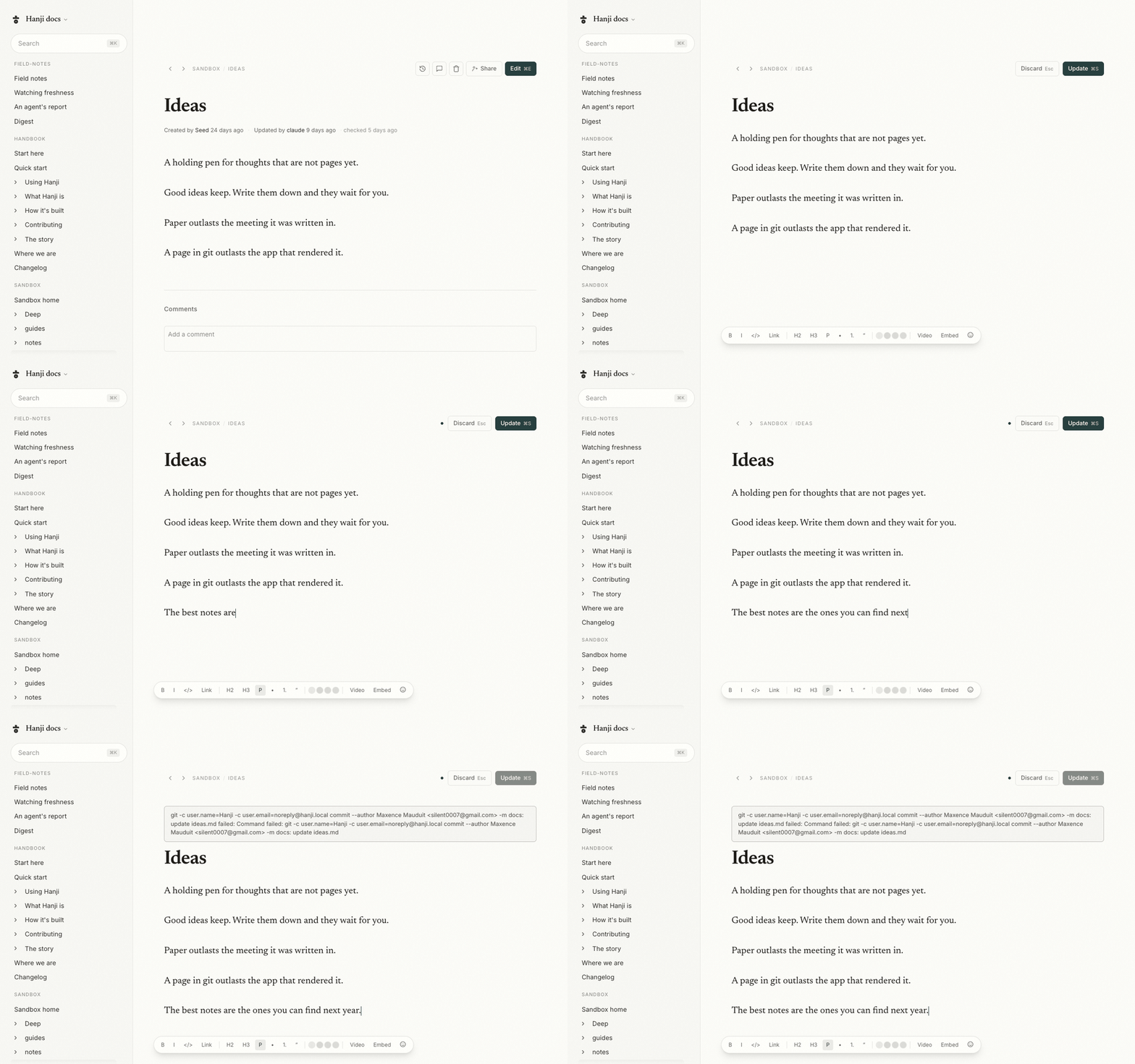
Editing is deliberate, and it is one gesture.
- Press Edit, or
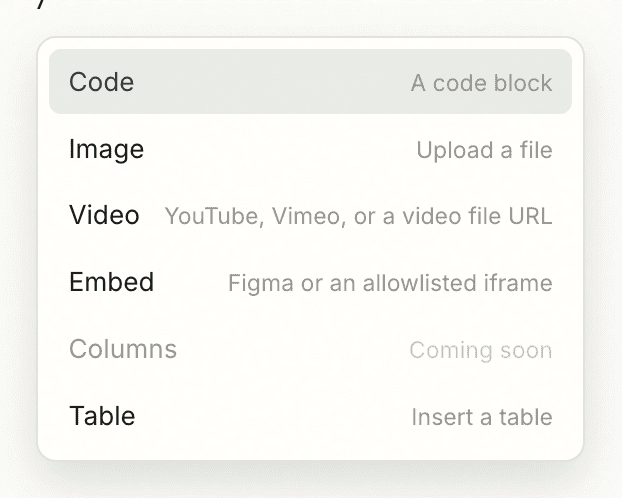
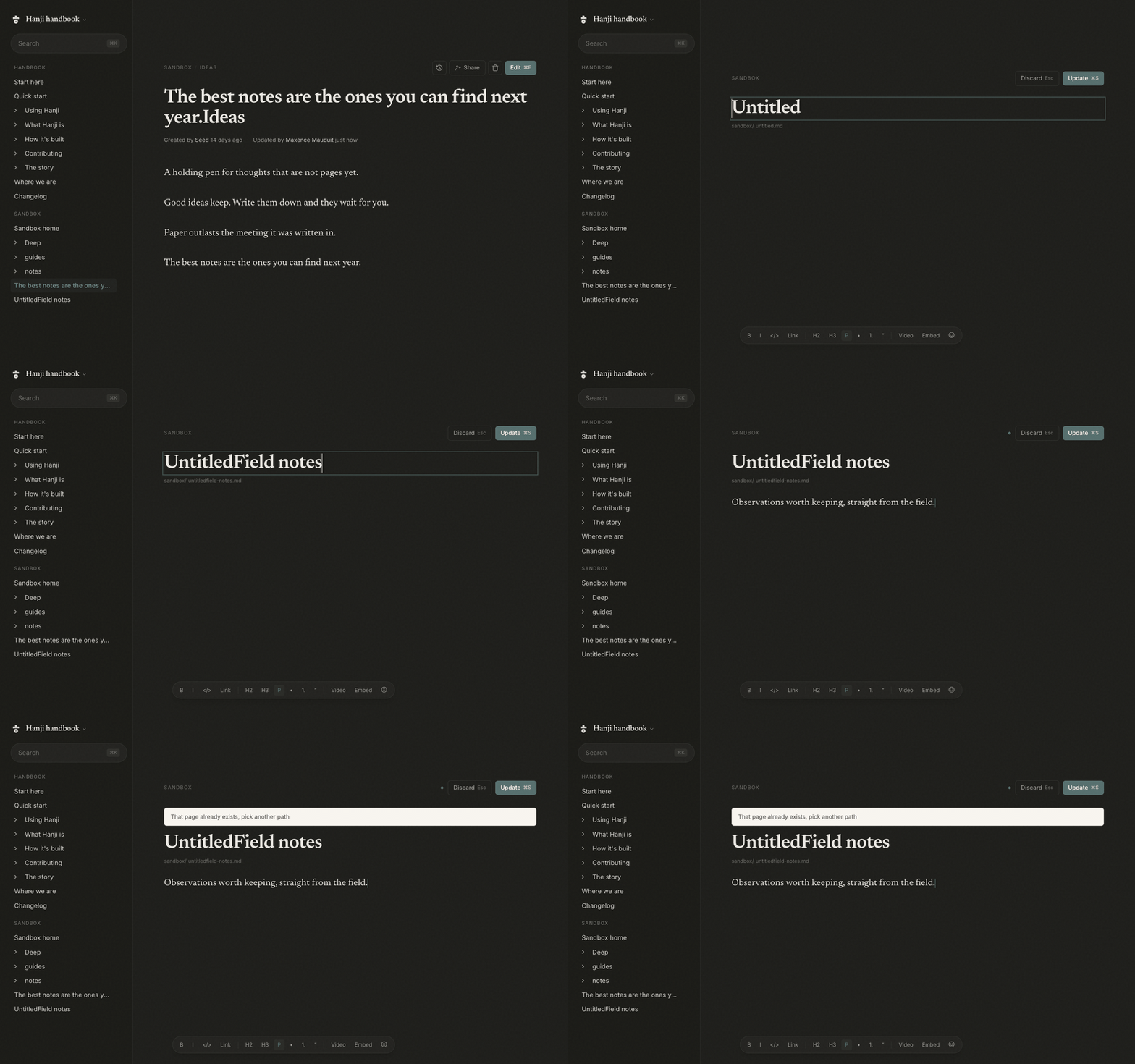
⌘E. The page becomes editable in place, on the same measure you were reading, at the same scroll position - the header bar keeps its breadcrumb and simply swaps its buttons for Discard and Update. - Change what you came to change. It is a real editor: Markdown shortcuts, a slash menu to insert, tables with handles, task lists, images, embeds, and emoji (the toolbar's picker, or type
:and a few letters). - Press Update. Hanji writes a single commit behind the scenes, with a clean message, and drops you back into reading.
The header bar stays with you: back and forward, the breadcrumb, and the page's actions stick to the top of the view, so a long page never scrolls away from its own controls. A hairline appears under it once the prose is running beneath, and is gone again at the top of the page.
Line breaks, and tables
⇧Enter puts a line break inside the block you are in rather than starting a new one. Inside a table cell, plain Enter means the same thing, because a cell is one line and has nothing to split. A break is written to the file as <br> - the only spelling a table row can carry, and the one Hanji uses everywhere so that a break survives being moved from a paragraph into a cell and back.
That is also as far as a list in a cell goes: broken lines, each with its own dash. Markdown tables hold inline content only, so a real bullet list cannot live in a cell in any tool that writes Markdown - what you get is the lines, correctly broken, and the dashes you typed are left exactly as you typed them.
Highlights
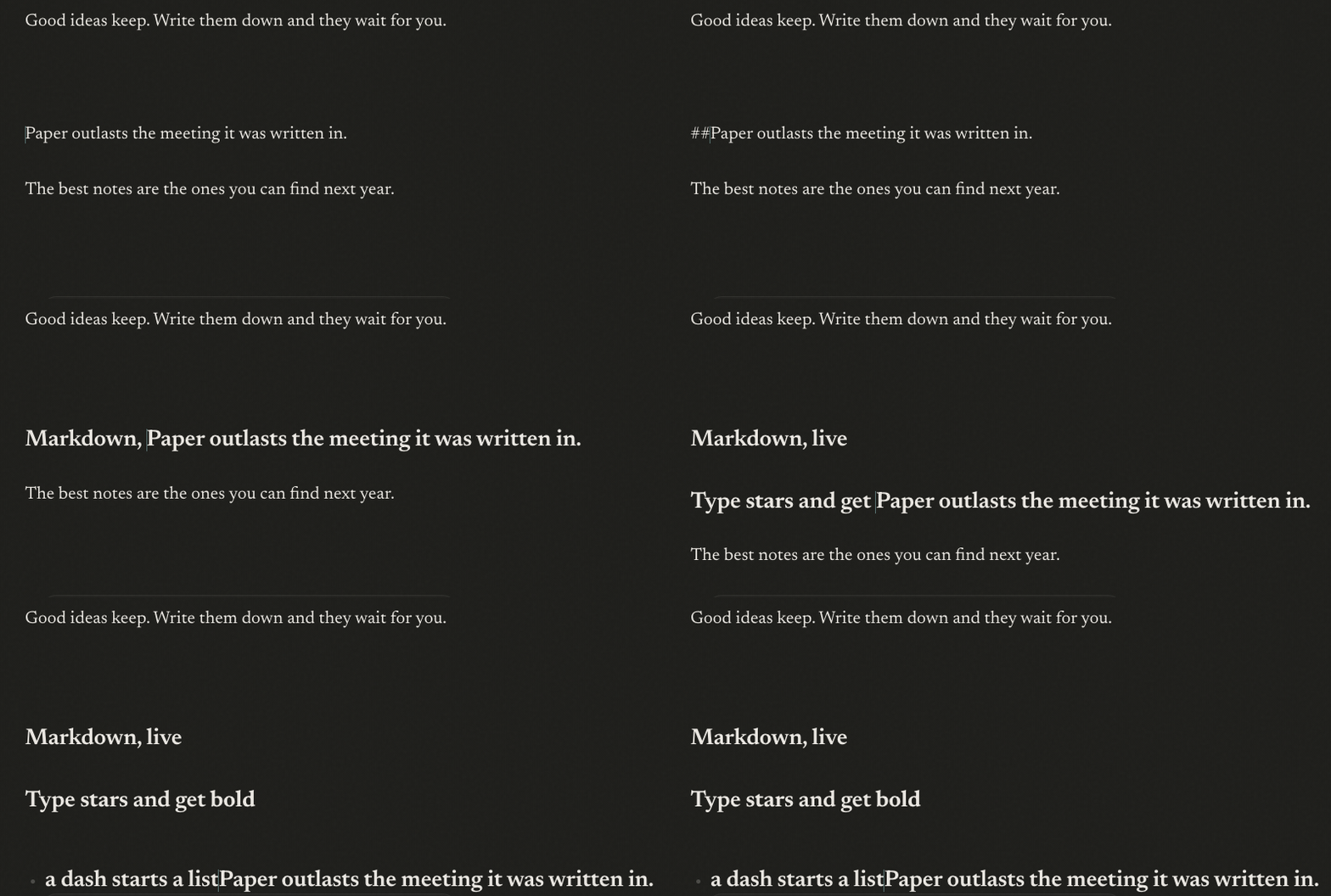
Highlight a phrase the way you would bold one: select it and press ⌘⇧H, pick a swatch from the selection bubble or the bottom toolbar, or simply type ==like this==. There are four colours - a default yellow, then blue, green, and pink - and pressing the swatch a highlight already wears takes it off again.
What lands in the file is worth knowing, because it is your file. The default colour writes ==the phrase==, the portable spelling every other Markdown tool understands. A chosen colour has to write <mark class="hl-blue">the phrase</mark>, because standard Markdown has no way to name a colour. So the common case stays clean Markdown, and colour costs you portability only when you ask for one. Both read back as the same highlight, in the page and in the editor alike.
If you changed nothing, nothing is committed. There is no draft state to babysit, and no save button that lies. And because edits are byte-fidelity, the commit for a one-word fix is a one-line diff. See Byte-fidelity.

Fresh by the time you look
A page you are reading keeps itself current. While its tab is visible it checks itself every seven seconds, and when anyone changed it meanwhile - another editor pressing Update in the app, or an agent editing the underlying files - the page refreshes in place, quietly; switching back to the tab is enough to catch up. A one-line note says it happened, naming the page that moved, with a link straight to it when the change was somewhere else, or pointing at the Activity page when several moved at once. That includes the pictures: replacing an image counts as a change even though no prose moved, and the new picture arrives rather than the one your browser had already cached; no note for that, since there is no page to name and nothing for one to point at. When someone else has the page open in their editor, "Remy is editing" sits beside the byline, so you know a change is coming before it lands. The byline carries the trust surface: "checked just now" or "checked 4m ago" - when the index last agreed with the files, a different claim than the page's own "updated", which is about content - ticking as you read, with a quiet retry when a sync fails. Silence means nothing changed; nothing here ever interrupts.
When two edits collide
Hanji notices if the page changed underneath you, and it never makes you throw your edits away to deal with it. While your editor is open, the page checks itself every seven seconds, and a change raises only a quiet line, not an alarm: "Remy changed this page. It will merge when you save." The line names the other hand where the name is honest (the last committer, on a git-backed mount) and says "This page changed" on a plain folder. If someone else is editing at the same moment, a second line says so: "Remy is also editing this page. Edits merge when you save." There is no lock and no take-over; the merge waits until you save. As you type, your draft is kept in the browser too, so a reload or a closed tab loses nothing.
When you press Update and the page has moved, Hanji tries to fold the two edits together. Most of the time they touch different parts (someone fixed a link at the foot of the page while you rewrote the top), and the fold is clean: your work and theirs both land in one commit, and a line tells you it happened. A contributor gets the same fold: the proposal that lands in review already carries both edits. Only when the two genuinely changed the same lines does Hanji stop, and even then it never dead-ends. It shows you what the other side changed and offers doors, none of which discard your work or theirs: Keep my version keeps your wording where you both changed the same lines and folds in the rest of their edit; Take theirs loads their page and keeps your draft recoverable; Propose sends that same merge to review and leaves the page on theirs. A contributor, or anyone on a suggest mount, sees two doors, because for them Keep mine is the propose door: Propose my version and Take theirs. The save itself still re-checks the file on disk at the last moment, so nothing is ever overwritten unseen, and this holds on plain folders too, where no git history could bring an overwritten change back.
New pages
Making a page is the same gesture pointed at a path that does not exist yet. The fastest way is the + that appears at the end of every sidebar row: on a mount it creates at the root, on a folder it creates inside it, and on a page it nests, converting that page into its section's landing with the new page beneath. Give it a title, write, and Update. That first Update is the commit that creates the file.
Organizing the sheet
The sidebar is not just a map. It is where you arrange the collection.
- Move: drag a page or folder onto another folder, or onto a mount's header for its root. A folder brings everything inside it, and the commit behind the drop is a real
git mv, so history follows the page. - Reorder: drop on the edge of a sibling row, where the insertion line shows. Hanji writes the new arrangement into the pages'
order:frontmatter, as one commit. This is the manual order, and it is the default the sidebar shows. - Nest: drop onto the middle of a page and it becomes a section landing with the dragged page inside, the same conversion the + performs.
- The rail too: drag one mount header onto another to reorder the mounts themselves.
Drops apply instantly; git catches up behind. If something blocks a move, the tree snaps back and a toast tells you why. And if you were reading the page you just moved, the address quietly follows it.
Sorting a section
The curated order: is not the only way to read a folder. Open a folder (or a mount) and a small sort control appears on its row: leave it Manual to keep your arrangement, or switch that section to Newest first, Oldest first, or A–Z by title. The date it sorts by is the one in the filename when a page has one (a 2026-04-24-… note sorts by that), and the page's last-commit date otherwise - so a bulk rename that resets git's dates does not scramble the order. The choice is per folder and per person, kept in your browser, so it never changes what anyone else sees or writes anything to the repository. A re-sorted section keeps its control lit so you can tell at a glance. While a section is sorted, drag-to-reorder pauses there: the order you see is not the stored one, so switch back to Manual to curate again.
Deleting
Next to Edit sits a quiet trash. The first click arms it into an explicit red question, the second deletes: a git rm and one commit. Deleting a section landing takes its children with it, the inverse of nesting. Nothing is ever truly gone, though. The repository remembers every sheet, and history can bring one back.
History
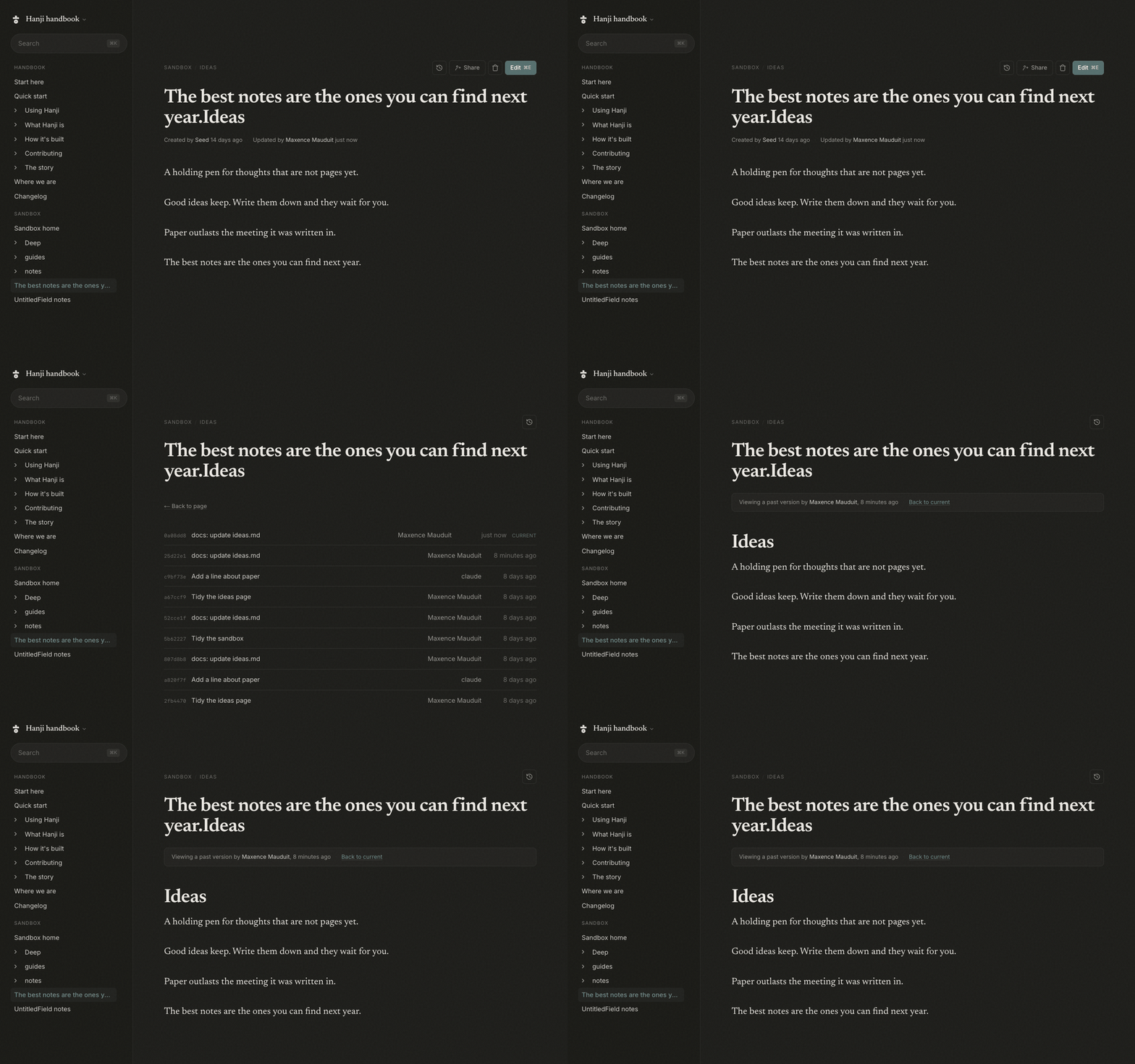
Every page carries its past. Open its history to see who changed it and when, as a list of revisions with a byline, and open any revision to read the page as it was then. Because the store is git, this is not a feature bolted on top. It is the commits, shown well.
Read Agents next, to let a coding agent read and propose against these same pages.